
MP3 Tagging – The Easy Way
I have over 4000 mp3s on my hard disk. And I don't like burning mp3s to DVD with missing tags.
Most of my mp3s come from offline satellite download and they came named similar as below:
193.251.135.116_08C9A07485__66477.mp3
You have to rename them one by one according to their tags. This is the easy part since most of the media players can consolidate your library automatically.

* You can consolidate your music library with Windows Media Player by going to options and then enabling the rename and rearrange music using media information.
Main problem is with files without tags or with incorrect tags. This is where MusicBrainz Picard comes to rescue. By matching acoustic fingerprint of your files with its database, it correctly identifies and tags your mp3s. You can also set it to rename your files too in the process.How to use it:
First adjust the program to your needs.
I enabled embedding cover images to tags and renaming file names.
Under 'View' enable 'File Browser'.
Select a folder which your files reside. Drag the folder under to the Unmatched Files in the center. You can drag the entire folder or choose files individually.

The tagger will read the metadata from each of the files and unless they have been tagged before, the files will be deposited into the "Unmatched files" folder. Files that have been tagged before and contain the MusicBrainz track identifier will be opened up as releases in the right-hand pane.
Once the tagger finishes processing the files, press the "Cluster" button (white square with 'clusters' on them). This will cause the tagger to attempt to group the files into album clusters by examining the metadata read from the files and clustering files that appear to belong to the same album. Files that are not matched into album clusters will remain in the "Unmatched files" folder. In future the tagger will automatically cluster the files when it has finished reading the metadata from the files.
If your existing files do not have an album tag, click on unmatched files to select all remaining files then click scan. All the matching tags will be shown on right pane. You only have to select the matching files and click save.
How to tags files with picard
Advanced tutorial
Musicbrainz server currently has info of 7138615 tracks.
You can also use album art plugin to add album arts in tags.
As an alternative you can also use Winamp for identifying your music files, it has a auto-tag feature which uses Gracenote database to find track information. You can access it by right clicking on any track / send to / auto tag.

How To Solve Common PDF Problems
Software: Freeware PDF Unlocker
Freeware PDF Unlocker is a freeware program that will remove the password and restrictions on any PDF file that you can read. Most commonly used to remove restrictions such as No printing or copy & paste functions. Uses a simple drag and drop method.Online: Free PDF Unlock Online Utility
A free online utility that allows you to upload a PDF, once uploaded, a version of the PDF without printing or copying/pasting restrictions is displayed in a new browser window.How to convert to/from pdf files:
Online: Pdf to text, Documents and images (total 68 file types) to pdf, Webpage to pdf, Zamzar (web conversion service), RRS to pdf
Software: Omniformat (suppoted files)
How to create/edit pdf files:
Online: Google Docs (It allows you to save your files as pdf), PDFHammer (edit PDF files online)
Software: Cute PDF Writer, OpenOffice
Pdf Readers:
Online: Pdfmenot
Software: Foxit, Sumatra
Everything Portable
If you like carrying your favourite software on usb drive here are some populer portable softwares for you:
Portable Browsers:
Opera, Google Chrome, Firefox, OperaTor: for anonymous brwosing.
Office Applications:
OpenOffice, Jarte Word processor (opens docx files, exports to pdf, Sumatra PDF, GNUCash, Sunbird, Thunderbird, Notepad++
Photo editing:
Chat/IM:
TorChat, Miranda, Pidgin, Windows Live Messanger
RSS/Feed Reader:
FeedDemon, NFReader, GreatNews, FeedReader
Web Editor:
Media Players:
VLC, MPlayer, CoolPlayer+, Winamp
Utilities:
ClamWin Antivirus, InfraRecorder CD/DVD burner, 7Zip, KeePass
Sources to find portable programs:
Mloovi – Get Foreign Language Blog Feeds in Your Language
 Mloovi uses Google Translate service to translate web feeds into your preffered language (which gogle translate supports). That way you can subscribe to any(almost) foreign neews feed and read it in your feed reader with your language choice.
You can also use mloovi on your blog to expand your readership.
FileHippo Update Checker
Sometime ago i recommend SUMo for software update checking. Today i found another program: FileHippo Update Checker.

When you install 149kb weighted program it checks your installed softwares instantly and shows their updates (even betas).

You just have to click the green arrow to download the new versions.
Clear Past Items from the Notification Area

Some programs put references in taskbar. Their references will stay in taskbar history even if you uninstall them.
When you open Taskbar Properties to customize, there are two sections: Current Items and Past Items.
How do you clear the Past Items?

Open regedit from start /run (Win + R)
HKEY_CURRENT_USER\Software\Microsoft\Windows\CurrentVersion\Explorer\TrayNotify
Delete the IconStreams and PastIconsStream values from the registry key.
Then open Task Manager, click the Processes tab, click Explorer.exe, and then click End Process. In Task Manager, click File, click New Task, type explorer, and then click OK.
Taskbar history cleared.
Related articles for further reading:
Windows Updates Downloader
I found a super easy way to save windows updates.
First download and install the program. Then choose your windows language in updates list.
Select the file appropriate to your windows version. When presented with the option to open or save, simply open the UL and it will automatically install itself in the WUD program folder.
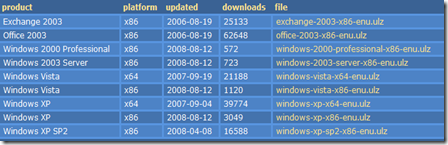
When you open the program you will presented with the available updates, choose among them and when you click download they will be saved in download folder.


Online Translators
 | Google translate |
 | BabelFish |
 | Windows Live Translator |
 | SYSTRAN |
 | GramTrans |
 | PROMT |
 | freetranslation.com |
 | Applied Language |
Free DVD: Windows Home Server
 Microsoft is shipping Windows Home Server’s 120 day tryout DVDs for free.
To obtain the DVD click here.

Select your location.

Select your country and continue.
 | There are four language options. Select the one you want and click buy now. |

Fill out your shipping information.
You will receive the dvd soon.
note: there is no shipping fee.
SUMo: Check Software Updates
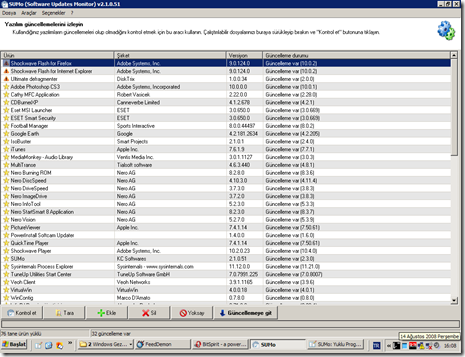
Thanks to SUMo (Software Update Monitor) you'll be able to keep your PC up-to-date by using the most recent version of your favorite software ! Unlike build-in auto update features, SUMo tells you if updates are available before you need to use your software.
Features
- Automatic detection of installed software
-
Detects required updates / patchs for your software -
Filter / authorize Beta versions (user setting) -
Ignore list : only tracks software YOU want to track -
More compatibility and less false positive than others Update Monitors (according to users feedback ;-) -
Internationalization support.
uTorrent 1.8 Released

My preferred torrent client uTorrent has been updated to ver1.8.
Currently my system has 512mb RAM, so i expect most programs to use the least memory possible. And uTorrent is great about it. It is only 260kb and does what a torrent client is supposed to do.
How To Dismantle LiteOn DVD Drive
Before you remove the drive from PC case leave the drive open so that its loading slot will stay out. Somehow I cant fully dismantle it if its closed.


Remove all the screws you can find.

Push the front nails.

Push the middle nails.

And that is it, you should have your DVD drive dismantled from it case. From here you can easily clean its laser head.
Ways to Access Blocked Websites
Proxy Programs – These programs direct your traffic to proxy servers which act as a middle man between your computer and your target website. So you are getting the content via proxy server.
Hotspot Shield – It is the fastest one I’ve tried.
torproject - foxtor (FF add on) - OperaTor
Changing DNS
Using IP Instead of URL – Most of the time websites are only blocked by their hostnames and not by their IP addresses. So instead of using their names you can try accessing them by using their IP addresses. Here is how to find it:
win+r / cmd / ping domain.com
Instead of domain.com just enter 66.150.120.145 in the address section of your browser.

Redirection with Short URL service
Using Cache services

Using Online Proxy sites
Proxy in Browsers
Use online translation services
Ultimate Shortcuts List
| Action | Shortcut |
| Activate Menu bar | Alt, or F10 |
| File menu | Alt+F |
| Edit menu | Alt+E |
| View menu | Alt+V |
| Undo the last operation | Ctrl+Z |
| Redo the last operation | Ctrl+Y |
| Cut the selected area | Ctrl+X, or ⇧ Shift+Del |
| Copy the selected area | Ctrl+C, or Ctrl+Ins |
| Paste contents of clipboard | Ctrl+V, or ⇧ Shift+Ins |
| Select everything in focused control or window | Ctrl+A |
| Delete selected file(s) | Del |
| Delete selected file(s) definitively | Shift+Del |
| Show help | F1 |
| Create a new document | Ctrl+N |
| Open a document | Ctrl+O |
| Save the current document | Ctrl+S |
| Print the current document | Ctrl+P |
| Zoom in/out on the document | Ctrl+Click Wheel (Scroll) |
| Reload the current document | F5, Ctrl+R |
| start of line | Home |
| end of line | End |
| start of document | Ctrl + Home |
| end of document | Ctrl + End |
| previous word | Ctrl+← |
| next word | Ctrl+→ |
| previous line break | Ctrl+↑ |
| next line break | Ctrl+↓ |
| Make selected text bold | Ctrl+B |
| Underline selected text | Ctrl+U |
| Make selected text italic | Ctrl+I |
| Change to upper/lower case | Shift+F3 |
| Make selected text superscript | Ctrl+Shift+(+) |
| Make selected text subscript | Ctrl+(+) |
| Switch to next/previous window | Alt+Tab / Shift+Alt+Tab |
| Switch to the next/previous window (without dialog) | Alt+Esc / Shift+Alt+Esc |
| Pop up window menu | Alt+Space |
| Minimize all | Win+M |
| Switch full screen/normal size | F11 |
| Show / hide desktop | Win+D |
| Close dialog | Esc |
| Moves keyboard focus to next/previous control | Tab / Shift+Tab |
| Toggle selected state of focused checkbox, radio button, or toggle button | Space |
| Activate focused button, menu item etc.. | Enter |
| Create new tab | Ctrl+T |
| Close current tab | Ctrl+W |
| Go to next/previous tab | Ctrl+Tab/Ctrl+Shift+Tab |
| Run new application | Win+R |
| Start menu / Applications menu | Win or Ctrl+Esc |
| Copy a screenshot to clipboard | Print Screen |
| Lock desktop/Switch active user | Win+L |
| Show desktop | Win+D |
| Task manager | Ctrl+Shift+Esc, Ctrl +Alt+Delete |
| Rename file | F2 |
Remove Unused Drivers and Devices
My Computer / right click / Properties / Advanced / Environment Variables /

Below the bottom Environment Variables window pane (System Variables), click on New. Enter for “Variable Name”:
“DEVMGR_SHOW_NONPRESENT_DEVICES”
and for “Variable Value” enter 1

Then My computer / right click / manage
right click Device Manager, click on View and then select Show hidden devices from the menu. You can identify the hidden devices by their grayed-out icons and remove them.


If you remove a piece of hardware without first uninstalling it in Device Manager, the drivers remains behind, but the device no longer shows up in Device Manager by default. By removing unused driver your system speed will not increase, but it is good for cleaning and may lower conflicts with new drivers, and may also prevent possible system errors.