Custom Cursors for Windows

Since we can change themes, icons, then why not cursors? After all when we are not using applications in full screen mode they are always on our sight.
And here is how to change default cursors with your custom ones:
First we have to find ourselves some cursors. I have included few links below where you can find quality cursors.
After you get your cursors from these sites copy them to
C:\Windows\Cursors
Cursors with *ani extension are animated whereas others ending with *.cur are static.
After you copied your cursors to cursors folder, go to
Start –> Control Panel –> Mouse –> "Pointers" tab –> Highlight the cursor you want to change –> Browse and find your custom cursor –> Apply
Custom cursor resources:
http://www.Deviant Art.com/
http://www.appleblossomart.com/cursors.htm
http://members.tripod.com/~SlvrDragon/other.html
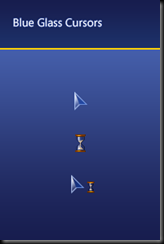
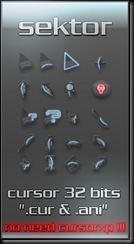
Some of my favorite ones:
 |  |   |
System Explorer: Free Full Featured Task Manager

I previously post a list of free and advanced task manager replacements. Here is my favorite one on that list: System Explorer. It has a lot of features that are missing on the default task managers, some of them being:
* Detailed information about Tasks, Processes, Startups, IE Add-ons, Uninstallers, Windows, Services, Drivers, Connections and Opened Files
* Easy check of suspicious files via VirusTotal service.
* Easy search details about file/process via online databases
* Easy access to System Utilities
* Performance graphs for monitoring usage of system resources in time
* Action History for monitoring processes activities
* Making of System Snapshots for easy finding of system changes.
* Multiple language support (English, Espanol, Deutsch, Portuguese, Japanese)
download (it has a portable version too)
For old time sake here is a screenshot from my old XP.
Look closely for total process number and memory usage.

Cybermind: Free Mastermind Clone

Cybermind, basically is a code breaker game developed by CyLog Software.
The aim of game is to guess the pattern of four colored spheres (in both color and order) out of eight colored spheres. After the each attempt you are shown with a number white and red pegs. White means, you have a right colored sphere in sequence but its place is wrong, and if it is red then both the color and place of the sphere is right. You have to guess the pattern in at most twelve attempts.
I do know if this game will increase your IQ, but I am sure it will increase your mathematical skills and off course you will spend a nice time playing it.
Since Cybermind is only under 2 mb and it is portable why not give it a go.

Digsby Hacks For Better Look

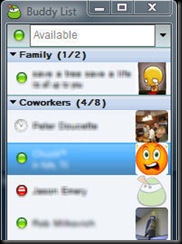
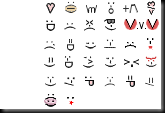
Personally I am not a big fan of custom themes, I usually use the default ones, and it is same with Digsby too, but if you want something different you can there are lots of custom stuff in Digsbies to download like skins, conversation themes and emoticons sets.
Some of them:
|
|  |
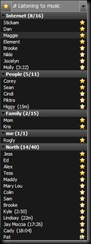
Conversation themes:
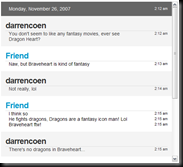 | 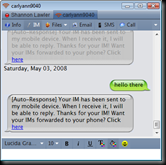 |
You can also use Adium Message Styles in Digsby, they are compatible. You just have to put them in Digsby\MessageStyles folder.
Emoticons sets:
 |
|

more:


S.T.A.L.K.E.R. Out of Map Experience (Warehouse)
S.T.A.L.K.E.R. Shadow of Chernobyl is in my Top 3 games list
Although it has about 30 square kilometers playable area we still need more of it.
One Application for 7 IM + 3 Social Network + Email

You probably have at least three online accounts; one for instant messaging, one for email communications and one for social networking. It may not be too hard to manage all these accounts, but if you have more than one for each of these it will become a problem. That is where Digsby comes. This application enables you to access and manage all your accounts with just one login. With Digsby, you can chat (both text, voice and video) with your friends from various IM platforms, you can send files to your friends, basically you can do all the things you do with a dedicated messenger program but apart from that you can also check your emails and set status updates.
Features:
Also here are some usage tips to increase your productivity:
Shortcuts
- Shift + Right arrow in buddy list window: Expand all groups
- Shift + Left arrow in buddy list window: Collapse all groups
- Ctrl + Tab in conversation window: Switch between tabs (left to right)
- Ctrl + Shift + Tab in conversation window: Switch between tabs (right to left)
- Ctrl + W in conversation window: Close conversation tab
- Ctrl + P in buddy list window: Bring up the preferences
- Ctrl + S in buddy list window: Bring up the skin menu
- Ctrl + Up in conversation window: Cycle up through recent sent messages
- Ctrl + Down in conversation window: Cycle down through recent sent messages
Managing contacts: You can create groups, combine multiple IM accounts of same person.
Twitter: If you are using Digsby for reading tweets you can create groups for your Twitter contacts as well so that you reserve the best ones for getting lost with “less” important people.
Batch file to replace file extensions
Previously I have written how to change extensions of several files by using the command prompt in just a few steps. Now we will see another method for that purpose.

Suppose you want to change all files in a folder with bmp extensions to have them rar extensions instead.
Open Notepad and write:
ren *.bmp *.rar
save this file as renamer.bat
*.bmp is your default extension, *.rar is your preferred extension.
This bat file will rename all *.bmp extension files in the folder to *.rar extension files.
How To Watch Popular Shows Online Outside Of USA

 For NBC.com & FOX.com
 1) install hotspot shield .
2) install and register veoh TV.
3) turn your system time to a USA-time.
4) start and connect hotspot shield.
5) start veoh TV
6) select channels, browse to your favorite channel and start watching.

 For ABC.com & CBS.com
 1) set to USA-time.
2) start Hotspot Shield.
3) go to ABC.com / CBS.com and try to start streaming a show. The streaming should start with an commercial. after that comm. shut down the hotspot shield and it should go on with the show. have fun. (You don't have to shut down hotspot for CBS) download VeohTV (official site doesn't allow visits outside of USA)
Some shows you can watch with Veoh: 24, Amazing Race, Bewitched, Big Brother, CSI, Dirt, Dexter, Futurama, Ghost Whisperer, Heroes, How I Met Your Mother, MacGyver, Martha Stewart, Medium, Nip/Tuck, Numb3rs, Roswell, Twilight Zone, Survivor, Star Trek, Two and a Half Man, Without a Trace
For Hulu
1) Start Hotspot Shield.
2) go to Hulu.com, choose your show and enjoy.
Some shows you can watch with Hulu: 24, Battlestar Galactica, Chuck, Dilbert, Dirt, Family Guy, Fantasy Island, Fame, Futurama, Heroes, House, How I Met Your Mother, John Doe, King of the Hill, Las Vegas, Law & Order, Married with Children, My Name is Earl, Nip/Tuck, The Office, Prison Break, Roswell, Saturday Night Live, Scrubs, Simpsons, Who's the Boss, Terminator: The Sarah Connor Chronicles, Full List
You can also use CyberGhost
Türkçesi için: TeknoHack
update (Jan 15, 2010): You can use http://tvgorge.com/ which has over 50 TV shows to watch your favorite shows
How to protect your special files from prying eyes
 You don't need to have illegal files in your computer to use special methods for hiding your files. Everybody needs some privacy.
 Here are some easy to implement methods to protect your files from outsiders:
1. Change file extension to a different format (txt|jpg to daa|zip|jpg etc.)
2. If it is a text file use a text encryption program.
3. Write text documents with programs that have encryption features. (MS Office Word, Open Office, Adobe Acrobat)
4. Use password when archiving with WinRAR, WinZip, WinUHA, 7Zip etc..
5. Burn your file as an image file (*.nrg,*.daa ; it is better if it is rather less popular format)
6. Use PowerISO to make password protected image file.
7. Use TrueCrypt to encrypt entire volume or just folders.
8. Use My LockBox to assign password to a folder.
9. Hide your file using file properties.
10. Use Free Hide Folder to hide and protect your files and folders with password.
11. Turn your secret plain text file into a password-protected .exe file with fSekrit.
12. Use stenography to store|send your sensitive data. For example you can use 4T Hit Mail for sending mails, this application hides your sensitive text in an image file
13. Change file/folder image with commonly known Windows system file images. (pagefile.sys, msdos.sys etc.)
14. Encrypt your file to password protected exe file with Ashampoo WinOptimizer.
15. Use dsCrypt ot drag and drop encrypt your file.
16. Rename the folder you want to be hidden by while pressing ALT type "0160", release ALT and press ENTER, then right-click in and select “properties” select the tab “customize” and select “change icon” scroll along and you should a few blank spaces click on any one and click ok. When you have saved the settings the folder will be invisible to hide all your personal files.
Remember it is always better if you use rather unknown formats.
You can use more than one method
Example
1. Write a text
2. Encrypt the text
3. Encrypt the file
4. Make password protected archive with file
5. Change file extension to *.xyz
6. Make a password protected image file
Task Manager Replacements

Task Manager is the mighty killer of hanging of programs, the hero who comes to your CTRL+ALT+DEL calls, but it has some weaknesses.
The default Windows Task Manager lacks functionality that is needed sometimes. You can’t see which process started applications, process associations etc. One other important advantage of using these alternative task managers is that you can use them on restricted user accounts if the administrator has disabled the default task manager.
There are many applications that you can replace with default task manager. 
Personally I use System Explorer. But there are tons of other task managers you can use.
Some of the most popular ones: 
Process Explorer (portable) from Microsoft

ProcessHacker (open source-portable)


ProcX (portable)
Related posts:
Picasa Shortcuts and Tips

Below is a list of keyboard shortcuts you can use in Picasa:
Shortcuts for Selecting Photos
- Ctrl-A: Select all photos in album
- Ctrl-D: De-select photos
- Ctrl-I: Invert photo selection
- Home: Select the first photo in your album
- End: Select the last photo in your album
- Ctrl-H: Hold selected photos in Photo Tray
- Ctrl-Enter: Locate the photo file on your computer
- Ctrl-O: Open a file on your computer
- Ctrl-1: View your photos as small thumbnails
- Ctrl-2: View your photos as large thumbnails
- F11: Use Picasa in full-screen mode
- Ctrl-4: Start a slideshow
- Ctrl-5: View your timeline
- Ctrl-3: Open an image in "Edit Mode"
- Ctrl-R: Rotate the image clockwise
- Ctrl-Shift-R: Rotate the image counter-clockwise
- Ctrl-Shift-H: Flip image horizontally
- Ctrl-Shift-V: Flip image vertically
- Ctrl-Shift-B: Add black and white effect
- Ctrl-E: Email selected photos
- Ctrl-P: Print selected images
- Ctrl-Shift-P: Print album contact sheet
- Ctrl-F: Search
- Ctrl-K: Add keywords to your photos
- Ctrl-N: Create a new album
- F1: View help content
- X: Exclude a photo in import mode
- / [slash]: Pause or play video
- , [comma]: Rewind video
- . [period]: Fast forward video
source
Thomas shortcut: Control-Shift-Y (Easter egg of Picasa)
Other tips:
Reverse sorting – Picasa gives you three options for sorting your pictures; name (from A to Z), date (oldest to newest) and size (from small to large). If you want to have this reverse you can press shift while clicking any sorting option.
Physical location of face tags: contacts.xml file located in User\AppData\Local\Google\Picasa2\contacts